
03.01 Configure Haptic Trigger Parameters
Open manual menu
3.1 Configure VRChat Avatar Haptic Trigger Parameters
Configure the VRChat avatar haptic trigger parameters in Unity. If you do not edit avatars yourself, send this page to your avatar creator.
Parameter Name
Some screenshots show HapticHub/v1/LeftAnkle. Use HapticHub/v1/LeftFoot in the actual setup.
Setup Steps
-
Create an empty object under the target bone.
Using Left Foot as the example, create an empty object under the bone that needs the controller.
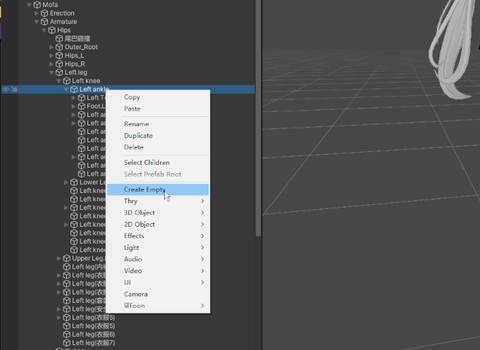
Create an empty object under the target bone. -
Confirm the parameter name.
The screenshot may show
HapticHub/v1/LeftAnkle. EnterHapticHub/v1/LeftFoot.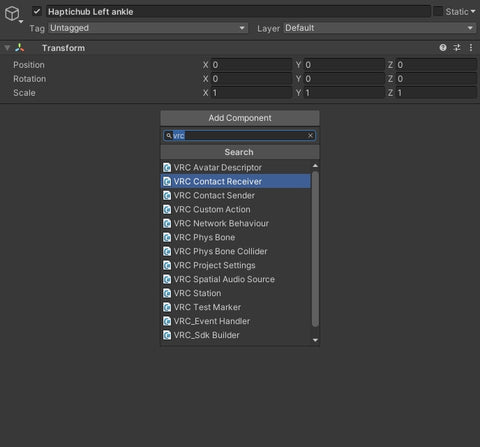
Use LeftFoot for the parameter. -
Configure the receiver trigger.
Add the collider types under Collision Tag. Use Allow Self and Allow Others under Filtering to choose who can trigger the receiver. Set Trigger Type to Proximity and Parameter to
HapticHub/v1/LeftFoot.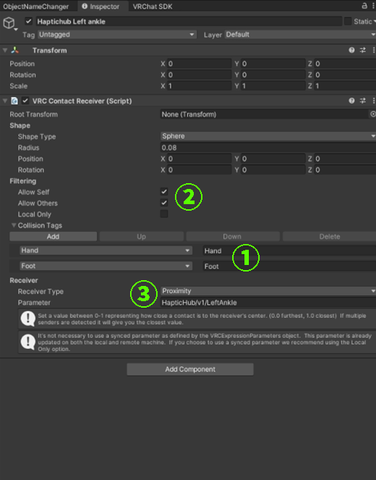
Receiver settings. -
Add the LeftFoot parameter to the FX Layer.
Add
HapticHub/v1/LeftFootto the model's FX Layer. It does not need to be added to synced parameters.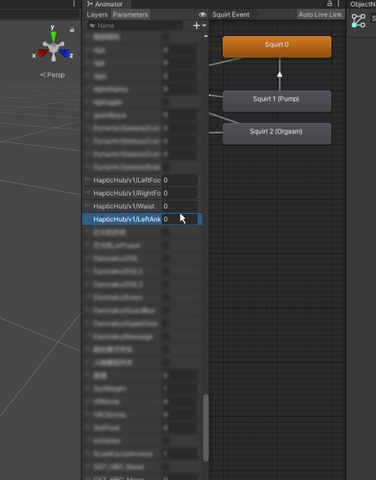
LeftFoot parameter setup. -
Upload the avatar and select the position in HapticHub.
Upload the avatar, start HapticHub, and set the corresponding haptic device position to Left Foot.
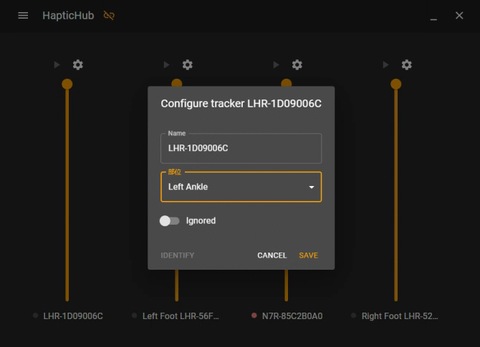
Set the haptic device position to Left Foot.
Stop Condition
Stop if fields in Unity, the VRChat SDK, or HapticHub do not match the images. Do not guess replacement fields. Contact your avatar creator or HIGVR support.